 Steem
How to build a WordPress plugin, start to finish
Published 8 min read
A WordPress plugin is a folder in wp-content/plugins with one PHP file whose header tells WordPress its name. Everything else, the settings page, the shortcode, the styles, hangs off hooks that file registers. That is the whole format, and it is why a plugin is a good size for a first build.
You can write those files by hand, or you can vibe code a WordPress plugin by describing the job and reading what comes back. This guide does the second, for real, and shows every step: one plugin for a bakery's opening hours, built on 14 November 2026 and run in WordPress 7.1.4.
Nothing here is a mock-up. The screenshots are the generated plugin running in WordPress Playground, and the faults listed near the end are faults in this build.
The whole build in one minute
The recording runs from the prompt to the finished page: the description going in, the files being written, the plugin active in WordPress, the hours set, a holiday added, and the result on a page. The build itself took about four minutes, three of them the model planning before it wrote the first file.
Step 1: describe the job, not the code
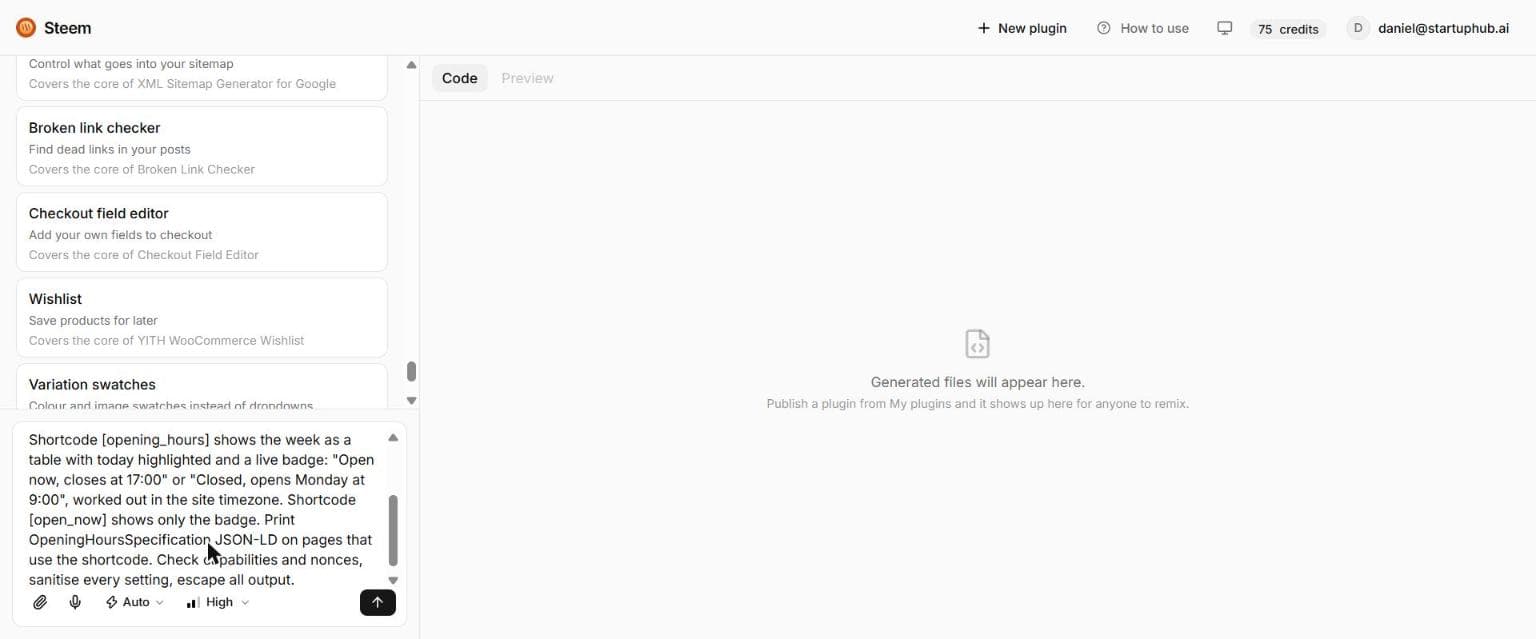
The prompt (it is in the build box at the end of this page) names five things, and each one removed a guess. Where the settings live: Settings, then Opening Hours. What the admin edits: an open or closed toggle per day, two times, a list of holiday dates with a note, a timezone. What the visitor sees: a table with today highlighted and a badge with exact wording, "Open now, closes at 17:00". How to call it: two shortcodes, [opening_hours] and [open_now]. And the security basics, asked for by name.
Leave out the wording and you get a badge that says "Status: open". Leave out the timezone and the badge is right for the server, which may be in another country. The prompt is where the thinking goes; it is shorter than the code by a factor of forty.
Step 2: what the six files do
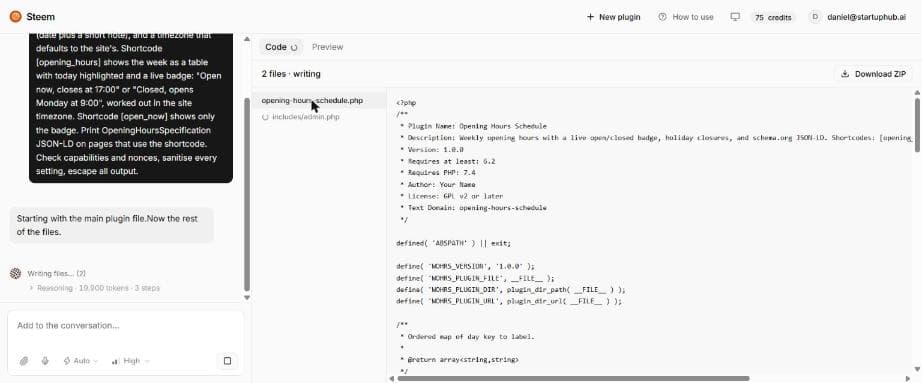
The build wrote six files, 26 KB in all. Reading them in this order is the quickest way to understand any plugin, generated or not.
opening-hours-schedule.php: the header WordPress reads (Plugin Name, Version, Requires PHP), the default settings, and an activation hook that seeds Monday to Friday, 09:00 to 17:00, without overwriting saved hours on a reinstall.includes/admin.php: the Settings page, the form, and the save handler.includes/public.php: both shortcodes, the open-now calculation, and the structured data.assets/css/frontend.css: the table and badge styles, loaded only on pages that use a shortcode.assets/js/admin.js: 23 lines that add and remove holiday rows without a page reload.uninstall.php: deletes the one option the plugin stores when you delete the plugin, so nothing is left in the database.
Step 3: read the security basics before you install
You do not need to read every line. You need to find five things, and in this build each is a single search away.
Every PHP file starts with defined( 'ABSPATH' ) || exit;, which stops the file running if someone requests it directly. The save handler checks current_user_can( 'manage_options' ) before anything else and verifies a nonce with check_admin_referer, so only an administrator, from this form, can change the hours. Every field is sanitised on the way in: times must match HH:MM, holiday dates must be real calendar dates, and the timezone must be one PHP recognises. Every value is escaped on the way out with esc_html or esc_attr.
One honest note on our own tooling. Steem's checker flagged this build with four failed security checks. All four were wrong: the checker looked for defined('ABSPATH') without the spaces WordPress coding standards use, and did not know that uninstall.php correctly uses a different guard. We fixed the check. The lesson stands either way: a warning is a reason to open the file, not a verdict.
Step 4: run it in WordPress before it touches your site
Steem boots each build in WordPress Playground, a full WordPress that runs in the browser, so the first install is on a site with nothing to lose. On a real site the path is the same as any plugin: Plugins, Add New, Upload Plugin, choose the ZIP, Activate.
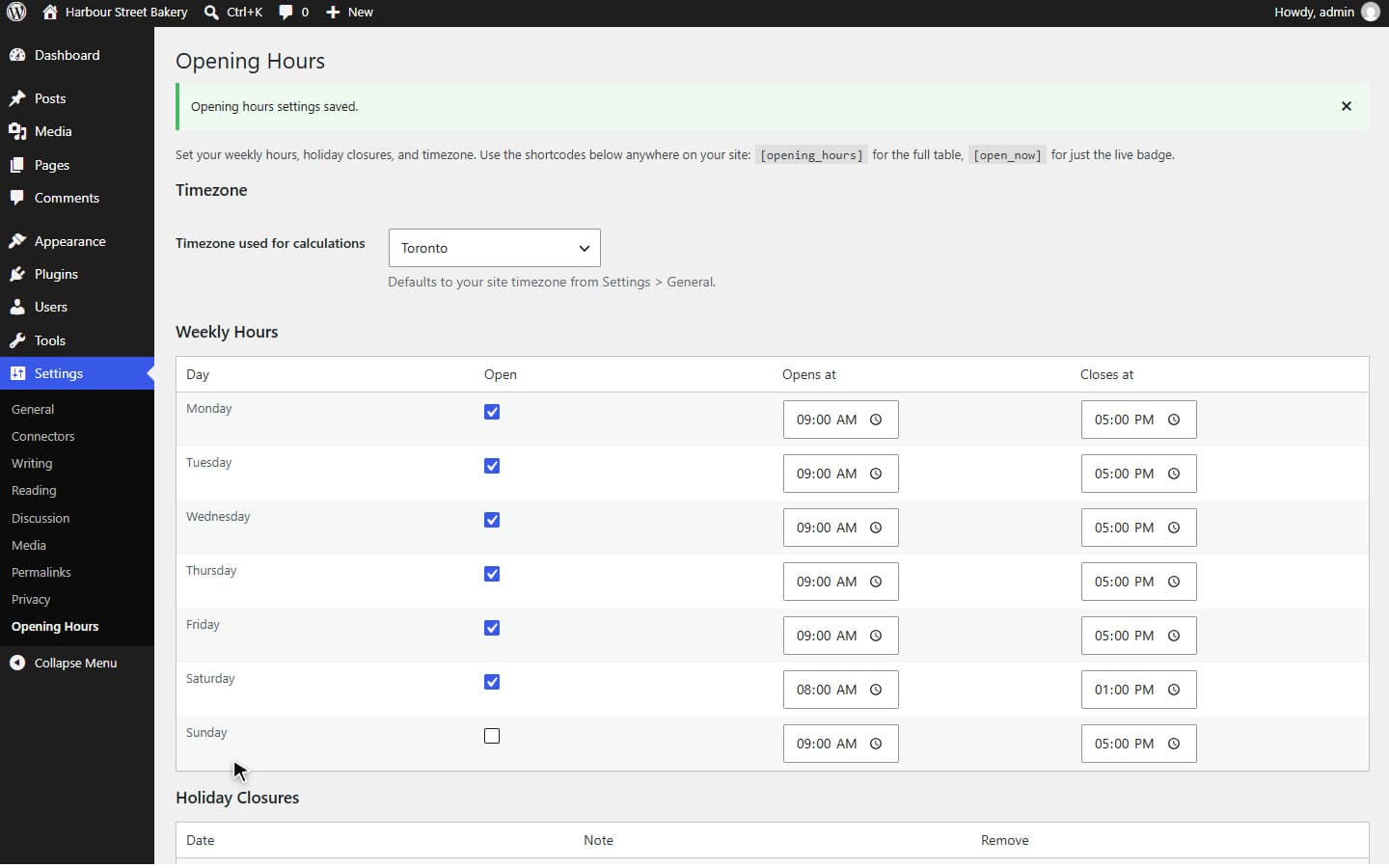
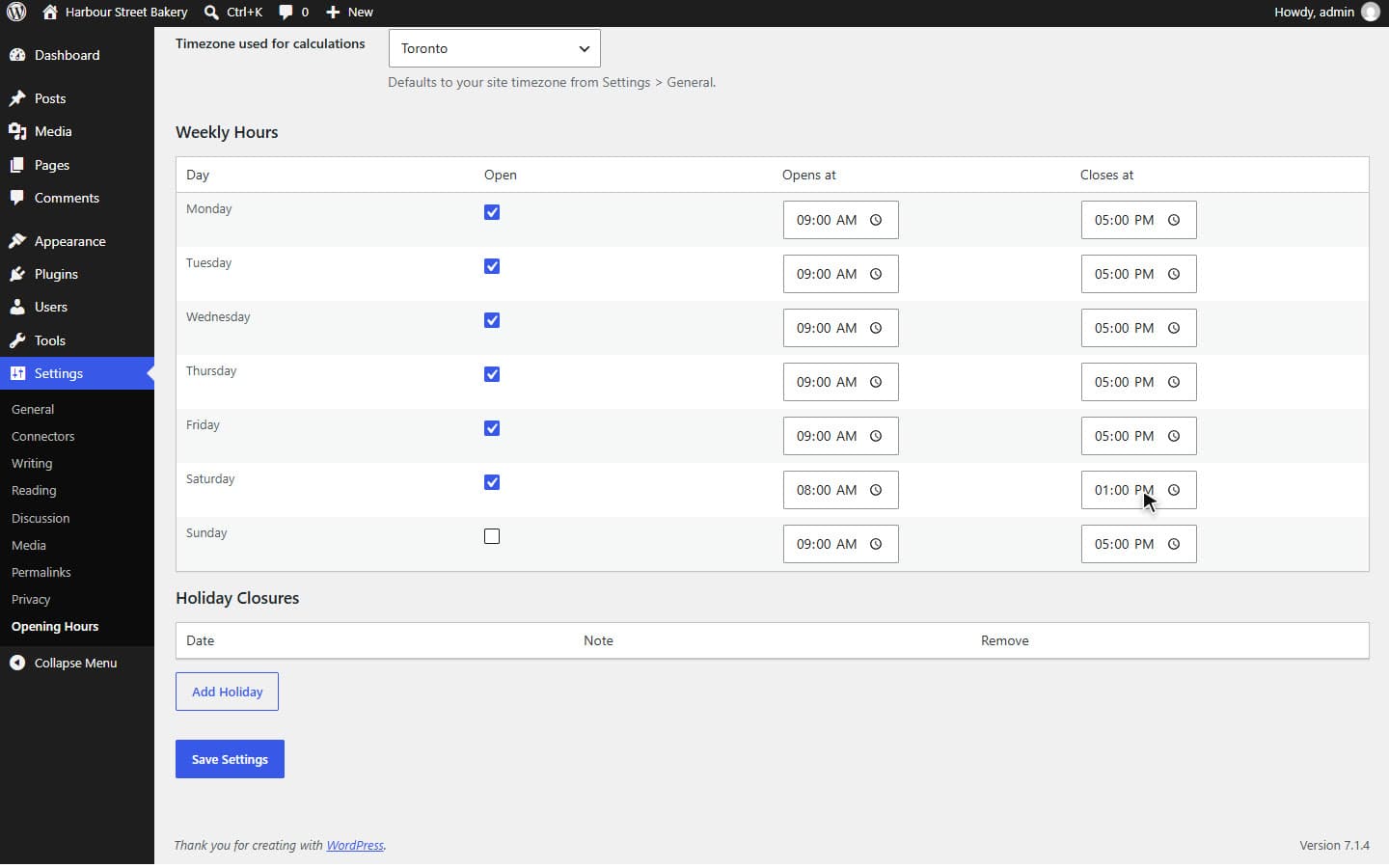
Here the settings page came up under Settings as asked, with the site's timezone already selected. We opened Saturday from 08:00 to 13:00, added 25 December with the note Christmas Day, and saved. The page reloaded with a notice, and the values stayed.
Step 5: check the front end against the clock
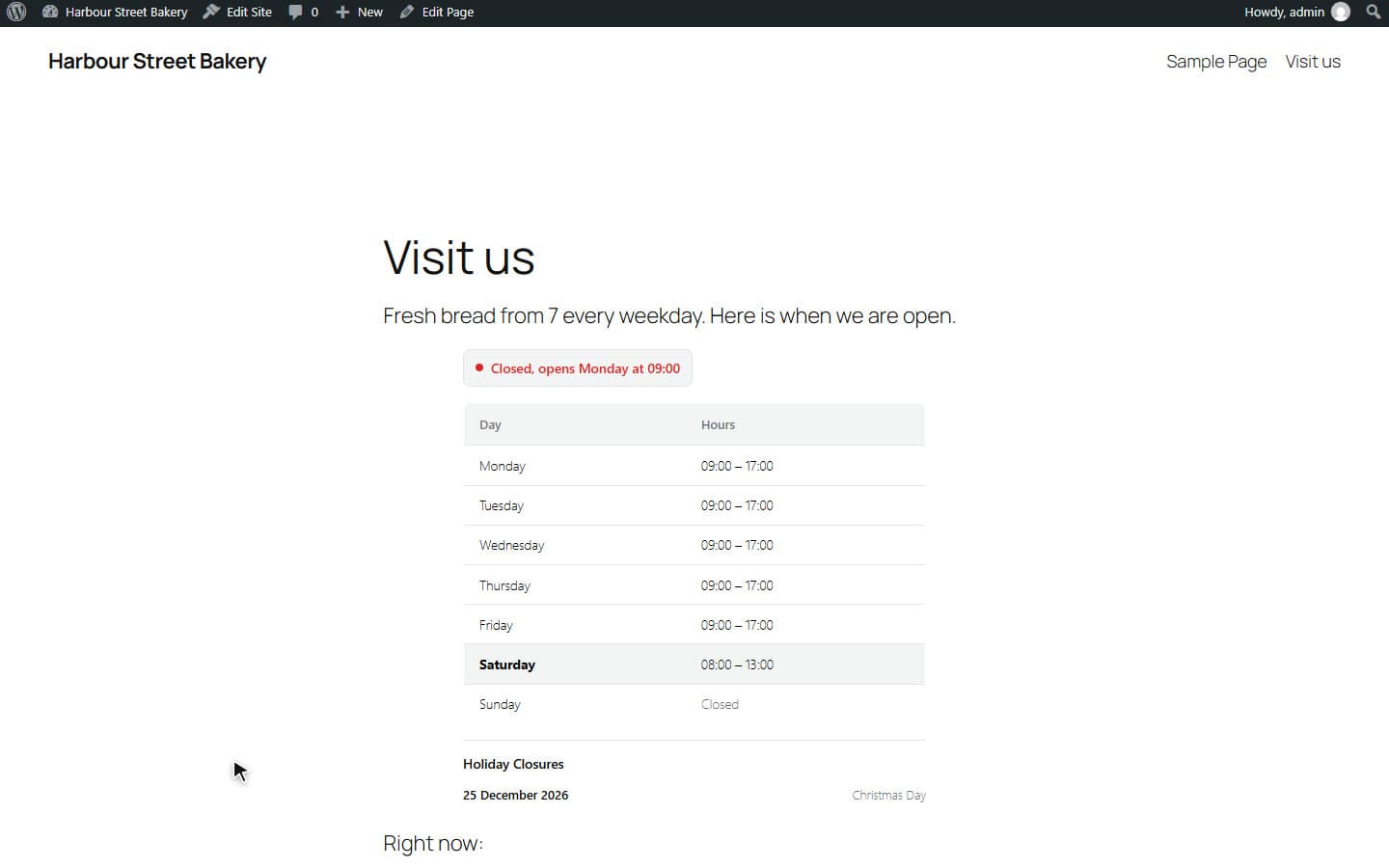
A page with both shortcodes shows the week, today in bold, the holiday list and the badge. The badge is the part worth testing, because it is the part that can be wrong.
The screenshot was taken at 22:40 on a Saturday, Toronto time. The bakery had closed at 13:00, Sunday is closed, so the next opening is Monday at 09:00, and that is what the badge says. To test yours, change the site timezone and reload, or add today's date as a holiday: the message should change with it. If it does not, that is the first thing to send back.
What we would change before shipping it
The plugin works. These are the things a careful reviewer would still send back, and each is one more message in the same conversation.
- The structured data is not attached to a business. It prints
OpeningHoursSpecificationentries on their own, but Google reads opening hours as a property of aLocalBusiness. Ask for the hours to sit inside a LocalBusiness with the site name and address. - A page cache freezes the badge. It is worked out when the page renders, so a cached page can say Open after closing. Exclude the page from the cache, or ask for the badge to update in the browser.
- Hours past midnight are not supported: a bar open from 18:00 to 02:00 cannot be entered. The build said so itself when it finished.
- Past holidays stay in the list until someone removes them.
- The header says Author: Your Name. Change it before anyone else sees the plugin.
Building the same plugin by hand
If you write PHP, the six files above are a fair map of the job: a main file with the header, an admin file using add_options_page and a form, a public file with add_shortcode, and an uninstall file. The settings save, the timezone maths and the holiday logic are where the hours go; the folder structure takes minutes.
If you would rather start from an empty, well-organised skeleton and write the behaviour yourself, the Plugin Boilerplate compared with an AI build covers when that is the better start. If you do not have a site to install on yet, How to install WordPress is the short path to one.
What you get
Included
- Writing a plugin prompt that leaves nothing to guess
- What each file in a typical plugin does, using a real build
- The five security basics to find before installing
- Testing in WordPress Playground, then on a real site
- Reviewing generated code and asking for fixes
Not included
- Publishing a plugin on WordPress.org
- Block editor (Gutenberg) block development
- Plugins that need their own database tables or a REST API
- A full security audit
Writing the plugin by hand does the things on the right. This build covers the part most sites use.
Questions
Do I need to know PHP to build a WordPress plugin?
Not to build one: a description in plain English produced the working plugin in this guide. You do need to be able to read the five security basics in step 3, or have someone check them, before it goes on a site that matters.
How long does it take to build a WordPress plugin?
This one took about four minutes to generate and a few more to test in Playground. By hand, a plugin of this size is an afternoon for someone who knows the WordPress settings and shortcode APIs.
What does building a plugin on Steem cost?
This build used 51 credits. A new account starts with 75 free credits, enough for one complete plugin and a refinement.
Build it in Steem
The button opens the builder with this guide's prompt filled in, so you can change anything before it runs. Nothing is built, and nothing is charged, until you send it.
Read the prompt (101 words)
Build an Opening Hours plugin. Settings page under Settings > Opening Hours: for each day Monday to Sunday an open/closed toggle with open and close times, a list of holiday closures (date plus a short note), and a timezone that defaults to the site's. Shortcode [opening_hours] shows the week as a table with today highlighted and a live badge: "Open now, closes at 17:00" or "Closed, opens Monday at 9:00", worked out in the site timezone. Shortcode [open_now] shows only the badge. Print OpeningHoursSpecification JSON-LD on pages that use the shortcode. Check capabilities and nonces, sanitise every setting, escape all output.